YOUR PHYSICAL CARD, ON YOUR PHONE
Add Your Velare Card
To Google Pay.
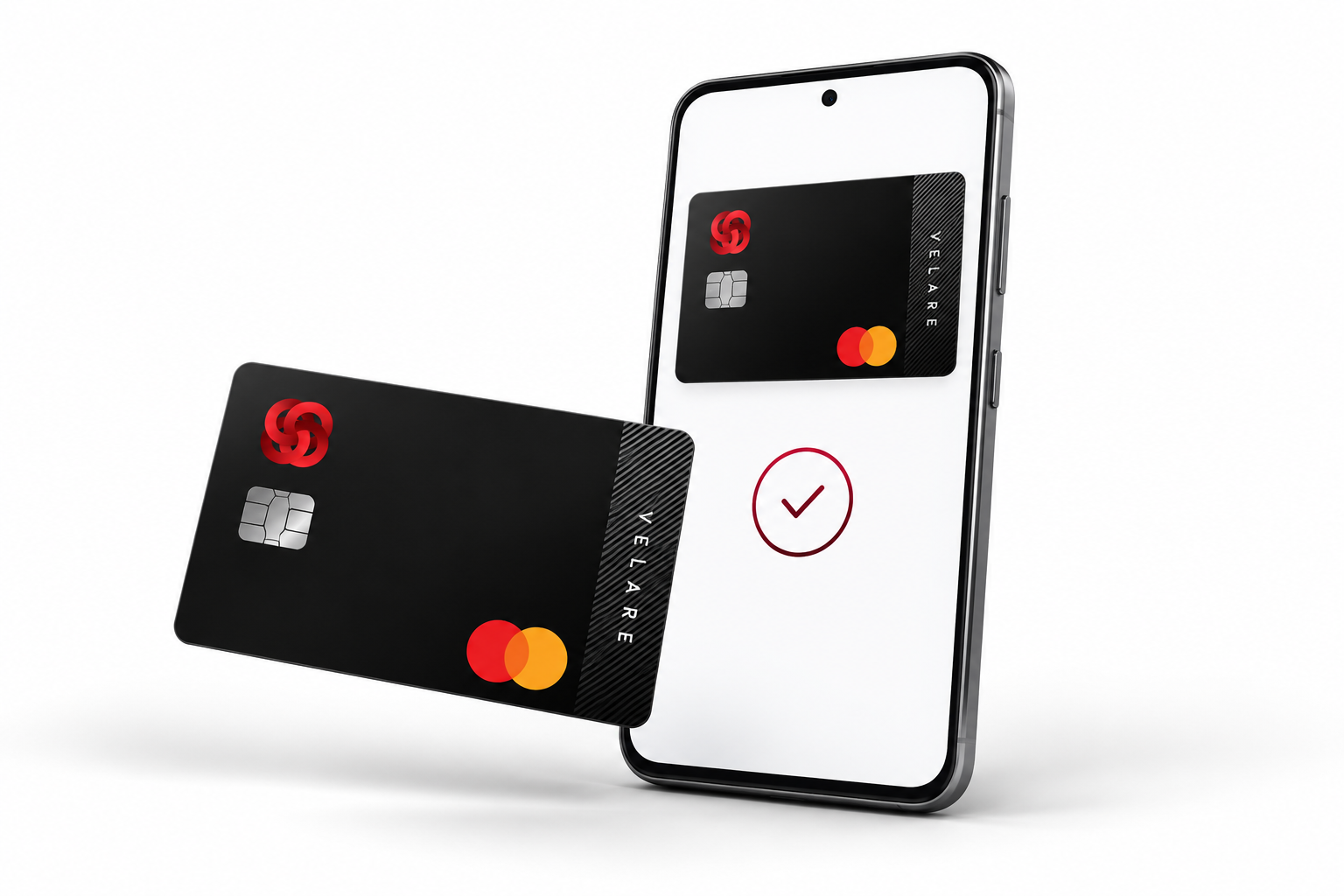
Keep your physical Velare Card close, even when it’s in your phone. Add it in Google Wallet and complete verification with our illustrated guide.
Follow The Setup GuideFor your physical Velare Card.
A QUICK CHECK
Before You Start.
- Your Physical Card
Keep your physical Velare Card ready.
- Google Wallet
Open Google Wallet on your phone.
- Your Contact Details
Have access to your registered mobile number and email.
FOLLOW ALONG
Six Steps. One Connected Card.
The screens below are illustrations. Labels and verification options may vary; follow the prompts on your device.
-
01
Add A Payment Card
In Google Wallet, tap Add to Wallet or Add a payment card. Choose Payment card, then New credit or debit card if prompted.
-
02
Enter Your Card Details
Scan your physical card or select Enter details manually. Check the card number, expiry date and security code (CVC).
-
03
Review And Accept
Confirm your billing details and tap Save. Read the issuer terms, tap More if shown, then tap Accept to continue.
-
04
Receive Your Verification Code
Follow the verification option shown in Google Wallet. Your one-time password (OTP) may be sent by SMS or email to the registered contact details displayed on screen.
-
05
Complete Verification
Enter the latest OTP in Google Wallet and submit it. The message may refer to MatchMove. Keep your OTP private and enter it only in the setup process you started.
-
06
Confirm Your Card Is Ready
Wait for Google Wallet to confirm that your card is ready for contactless payments, then tap OK. Your physical Velare Card is now added to your wallet.
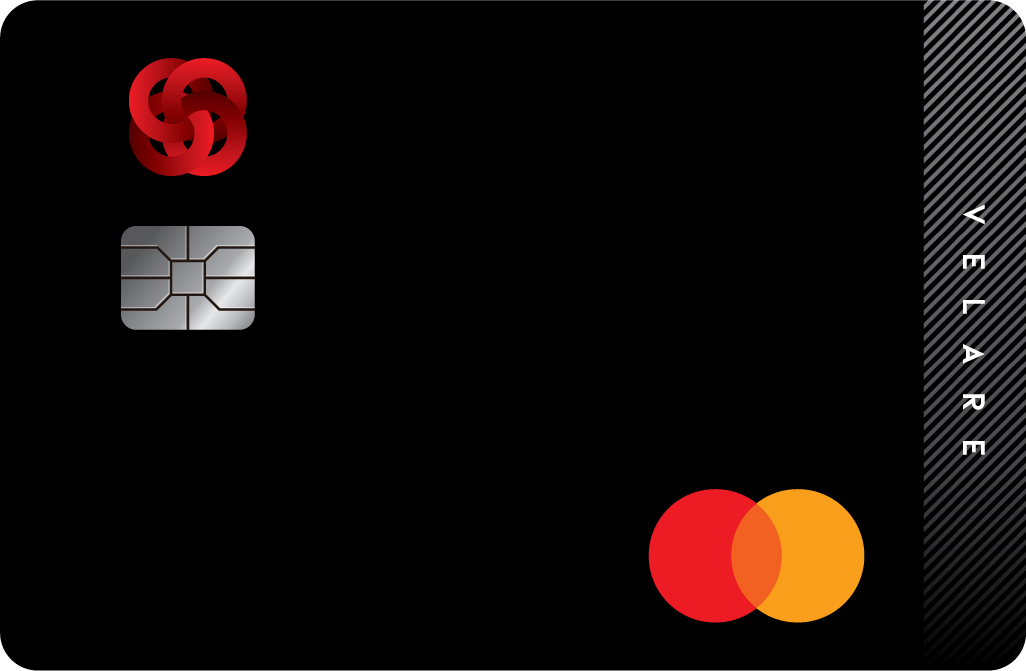
Google Wallet may call the added card a “virtual card”. This is the digital version of the physical card you have added; it is separate from the virtual card you issue in your Velare portal.
A LITTLE HELP, IF YOU NEED IT
Let’s Get You Set Up.
If setup fails or your registered details need attention, your Velare concierge can help.
Contact The Concierge velare@ecibank.comDidn’t Receive The Code?
Check the phone number or email shown on screen. For email verification, check your spam or junk folder too. Use the resend option or another verification method if offered.
Why Does The Message Say MatchMove?
MatchMove provides the card programme solution, so its name may appear in the verification message. Only enter the code in the Google Wallet setup process you started.
Is This For My Physical Or Virtual Card?
This guide is for adding your physical Velare Card. It does not cover the separate virtual card issued through your Velare portal.
Never send your OTP, PIN or card security code by email or include them in a support ticket.